Applying effective phone speed tweaks is the best way to handle that frustrating moment when an app hangs before opening.
We’ve all experienced that frustrating moment of tapping an app icon, only to watch the screen hang in limbo for three agonizing seconds before opening. You start eyeing the newest flagship models online, wondering if your device has simply aged out of usefulness and become a piece of digital junk.
Before you drop a small fortune on a brand-new upgrade, take a deep breath. Most of the time, your phone isn’t actually dead or dying—it’s just bogged down by hidden system animations, sluggish background processes, and unoptimized software settings that you can easily tweak yourself in under five minutes.
If you want to squeeze maximum performance out of your current hardware and make it feel lightning-fast again, here are five hidden speed tweaks you need to apply today.
1. Unlock Developer Options and Cut Animation Scales
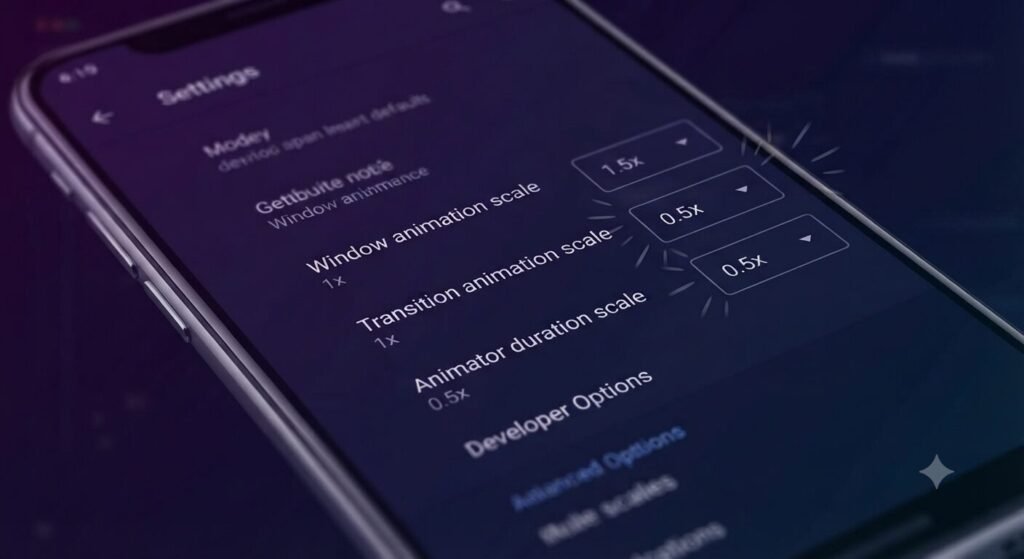
This is the absolute holy grail of speed tweaks, and hardly anyone outside of tech circles knows about it. If you dig into your system settings and tap your build number a few times, you unlock Developer Options.
Inside, you’ll find window, transition, and animator duration scales set to 1x by default. Drop all three down to 0.5x or turn them off completely. Doing this instantly strips away laggy transition fluff, making your phone feel twice as fast the second you touch the screen.
📌 Quick Tip: Go to Settings ➔ About Phone ➔ Software Information ➔ Tap ‘Build number’ 7 times continuously to unlock Developer Options.
2. Restrict Background Processes to Save CPU Power
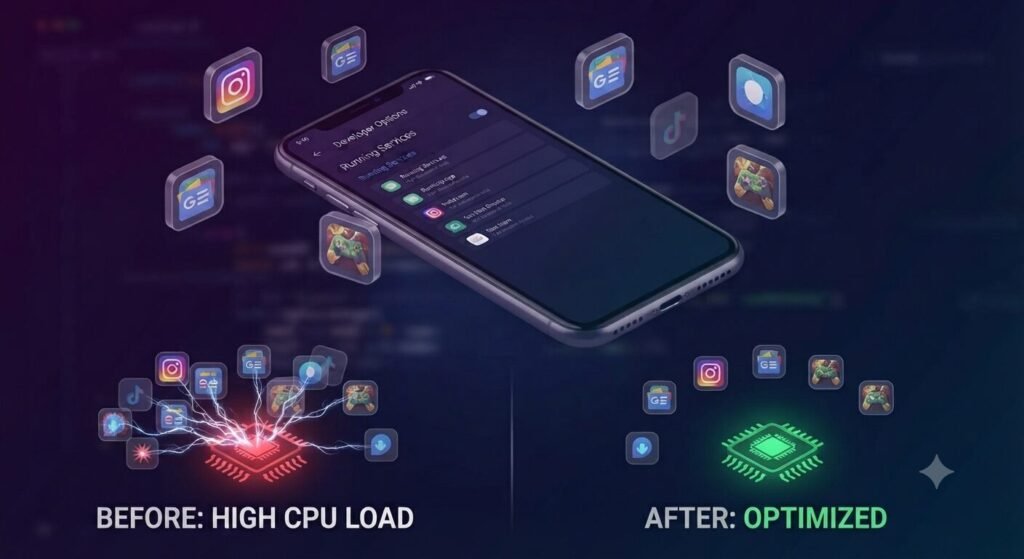
Your phone loves to run dozens of apps in the background while you sleep, eat, or work. These invisible processes hog RAM and starve your active apps of processing power.
Head into your app settings or developer options and limit background process activity. Halting unnecessary background chatter frees up heavy system resources, giving your active apps the breathing room they desperately need to fly.
3. Clear Out the System Cache Partition
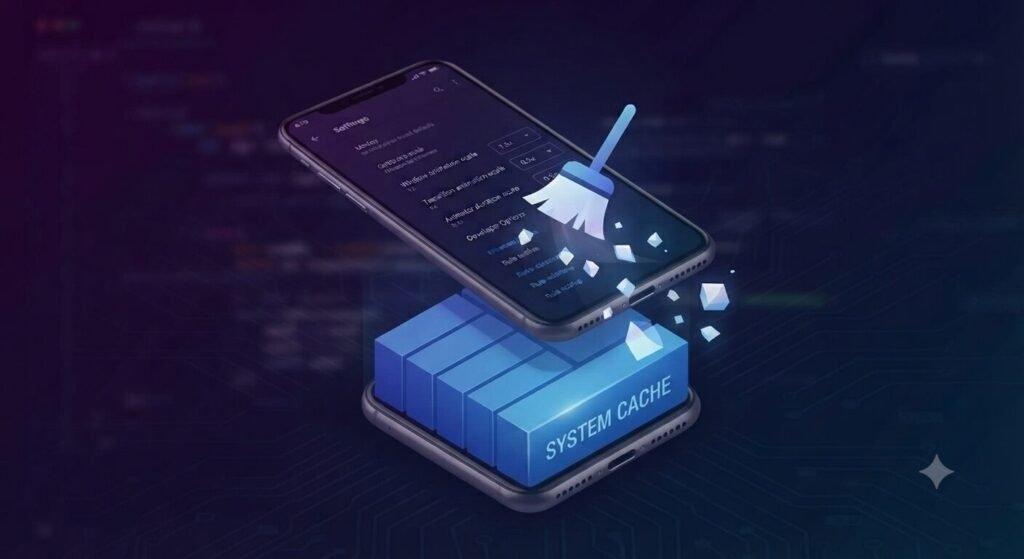
Apps leave behind temporary data fragments called cache files every single day. Over months of use, these fragments pile up into a massive digital traffic jam that chokes your processor’s response time.
Clearing out your system cache partition through your phone’s recovery menu (or doing a thorough sweep of app-specific caches) clears the highway. You will notice an immediate, buttery-smooth improvement in scrolling and multitasking.
4. Ditch Heavy Live Wallpapers and Fancy Widgets
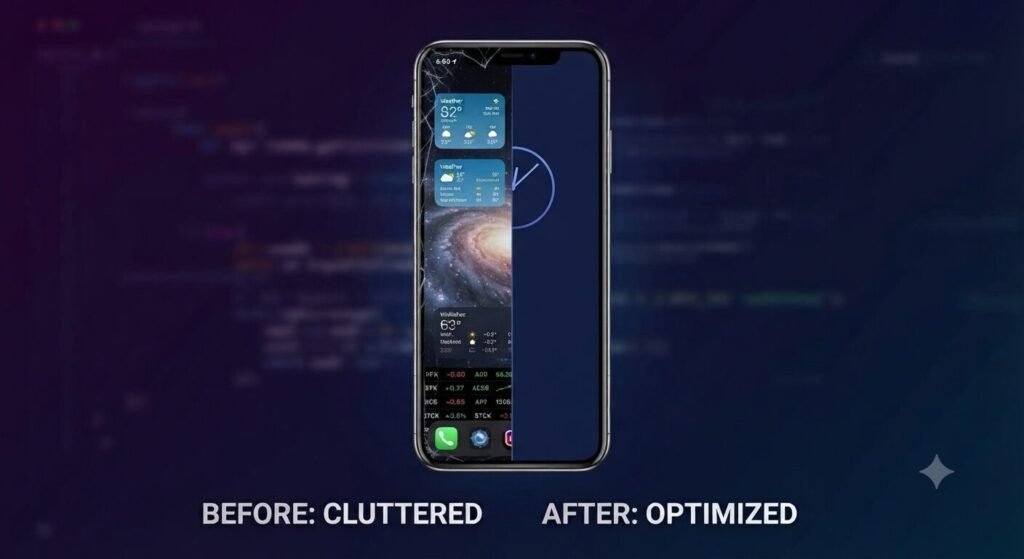
Animated live wallpapers and weather widgets that ping satellite locations every ten minutes look gorgeous, but they quietly murder your phone’s performance. Every time you return to your home screen, your CPU has to render those graphics from scratch.
Swap them out for a clean, static image and strip away widgets you don’t actually look at. Your processor will finally catch a break, and app launch times will drop noticeably.
5. Keep Your OS Updated (Unless It’s a Dinosaur)

People love to complain that updates slow phones down, but security patches and minor OS updates usually include crucial performance bug fixes and memory leak patches.
Running a heavily outdated operating system means you’re missing out on vital code optimizations designed to keep your processor efficient. Keep your system fresh, and your software framework will stay tightly synchronized with your hardware.
FAQ
- Q: Does turning off animations in developer options break anything on my phone?
- A: Not at all! It only removes the decorative fading and sliding transition effects when opening apps, making your navigation snappy and instant instead.
- Q: How often should I clear my system cache to keep things fast?
- A: Doing a thorough cache clean or maintenance sweep every three to six months is more than enough to keep your device running at peak performance without wearing out flash storage.
The Takeaway
A sluggish phone doesn’t automatically mean you need to empty your bank account on an expensive upgrade. A few hidden tweaks and a bit of system housekeeping are often all it takes to revive your daily driver. Give these tricks a try and enjoy your newly supercharged device!
💡 Read Next: If your Wi-Fi says it is connected but websites refuse to load, don’t let network glitches frustrate you—check out our step-by-step guide on [Wi-Fi Connected But No Internet? 5 Ways to Fix Your Phone’s Network Glitches] to get your connection back up and running instantly!