A few weeks ago I started noticing weirdly specific ads — stuff I’d only thought about buying, never searched for. That was enough to make me actually go through my phone’s privacy settings instead of ignoring them like everyone does. Turns out most of it comes down to five phone security settings most people never touch.
What I found wasn’t illegal or shady, exactly. It was just… a lot more access than I remembered giving away. Here’s what I locked down.
1. The Ad ID is the big one
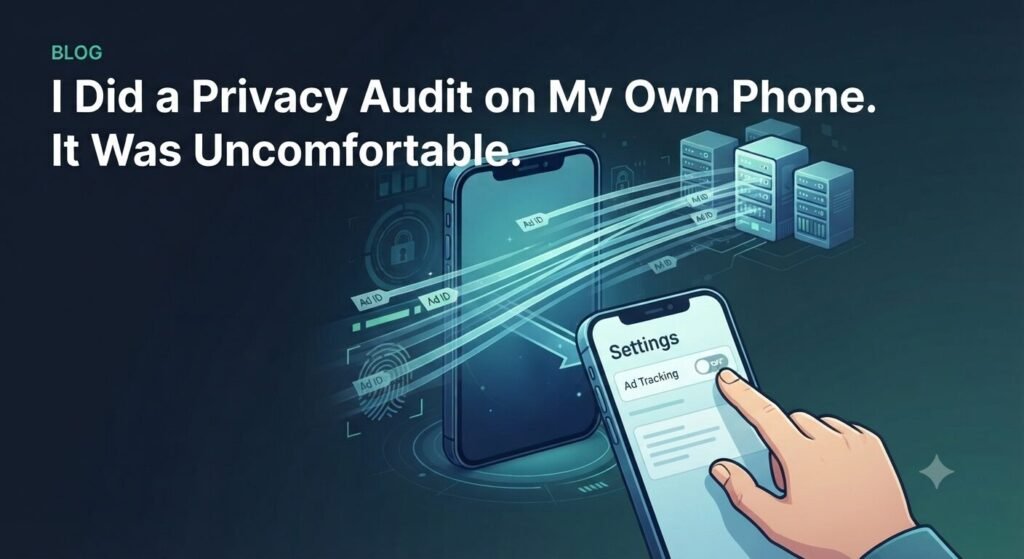
Every phone comes with a hidden advertising ID — basically a fingerprint that follows you across apps so advertisers can build a profile of your habits. Turning it off doesn’t kill ads entirely, but they get noticeably less specific, less “how did it know that.”
iPhone: Settings > Privacy & Security > Tracking — turn off “Allow Apps to Request to Track.”
Android: Settings > Google > Ads — tap “Delete advertising ID.”
I did this and honestly noticed a small battery bump too, since the phone’s not constantly transmitting tracking data in the background.
2. Precise location is overkill for most apps
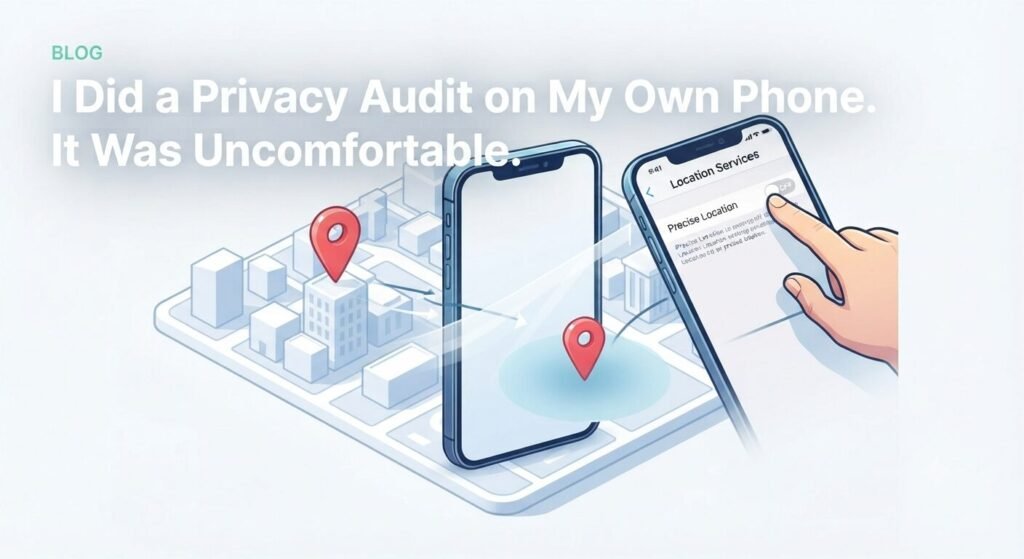
Does your weather app really need your exact street address? A general zip-code-level location tells it everything it needs. “Precise Location” gives apps a full trail of your daily movements, which is a lot more than most of them need to function.
Go to Settings > Privacy & Security > Location Services, and for anything that doesn’t strictly need pinpoint accuracy, toggle Precise Location off. It’s oddly satisfying — the phone just feels a bit less like it’s tracking you.
3. Your lock screen might already be leaking your data
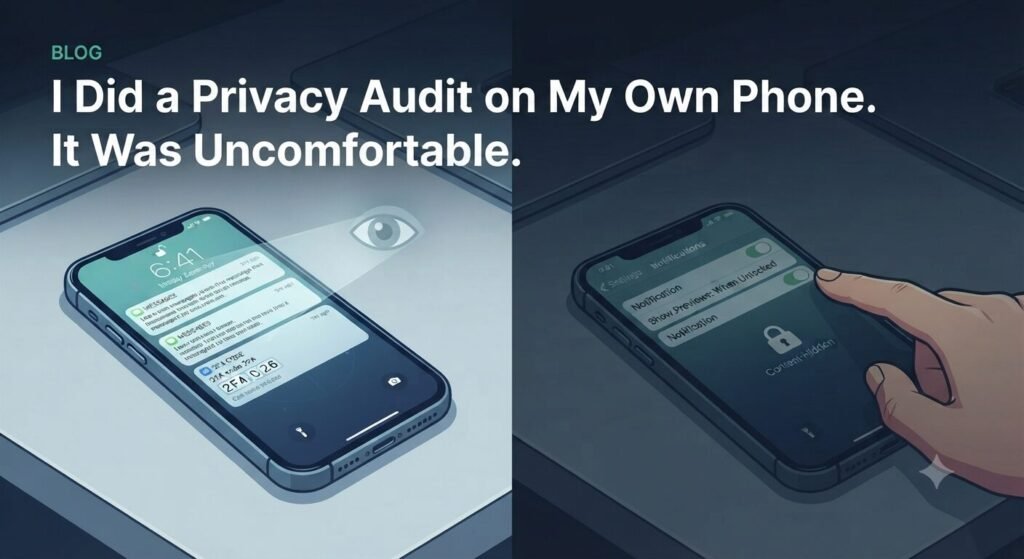
Here’s the one that actually made me pause: if your phone is locked but notification previews are on, someone glancing at your desk can see 2FA codes and private messages without ever unlocking anything.
Change this under Settings > Notifications > Show Previews — set it to “When Unlocked” or “Never.” Took thirty seconds, closes a bigger hole than it seems like it should.
4. Just let updates happen automatically
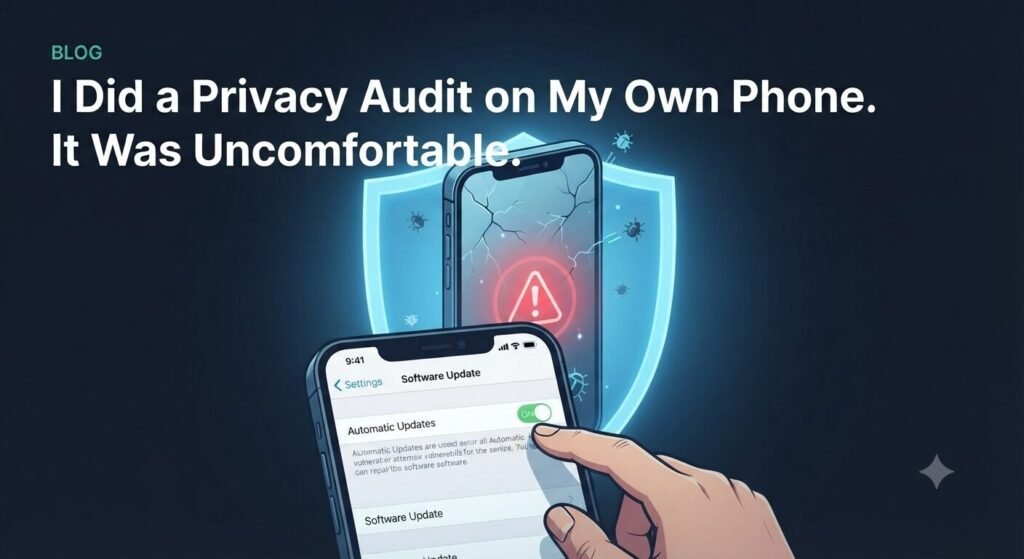
It’s tempting to snooze software updates forever, but they patch security holes that are actively being exploited elsewhere. Setting updates to install overnight is the definition of “set it and forget it” security — no ongoing effort required.
Settings > General > Software Update > Automatic Updates — toggle everything on.
5. Stop your phone from shouting for known networks
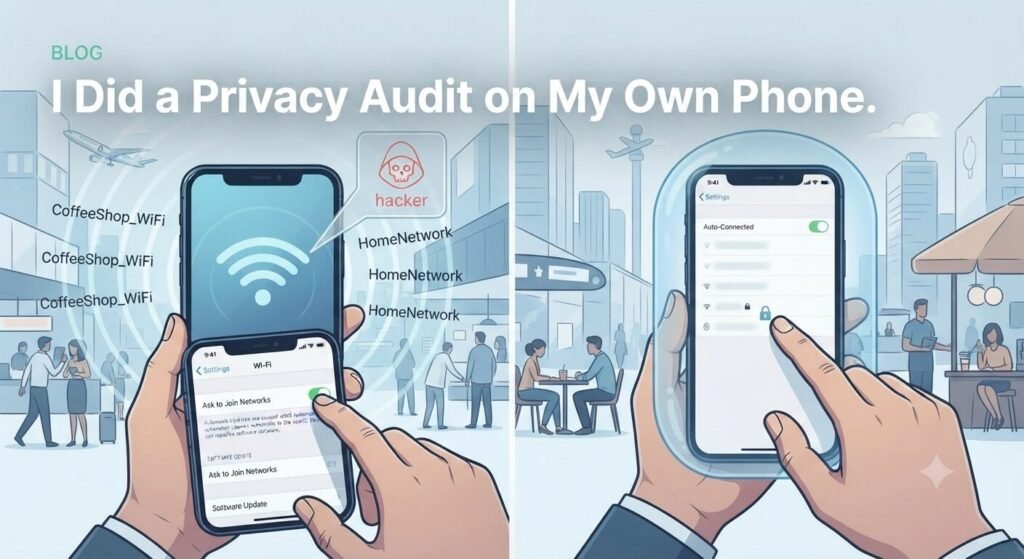
Phones constantly broadcast the names of Wi-Fi networks they’ve connected to before, which is exactly what spoofed public networks exploit to trick your device into connecting automatically.
Set your Wi-Fi to “Ask to Join Networks” instead of auto-connecting. I stopped getting those random “connect to this network?” prompts in malls and airports almost immediately.
None of these settings will make you invisible — nothing really does. But they raise the cost of snooping enough that most casual tracking just… stops bothering. Worth the fifteen minutes it takes.
Frequently Asked Questions
Do these phone security settings actually stop all tracking?
No setting makes you fully invisible, but tightening these phone security settings removes the easiest, most casual tracking — the kind that doesn’t take real effort to bypass.
Will turning off location tracking break any of my apps?
Rarely. Most apps that ask for precise location work fine with approximate location instead. If something breaks, you can always switch it back for that one app.
How often should I recheck these settings?
Once every few months is plenty. App permissions tend to creep back on after updates, so a quick recheck after a major OS update is a good habit.
Does resetting my advertising ID actually do anything permanent?
No — it just breaks the link between your past activity and your device going forward. Advertisers start building a profile from scratch, which is exactly the point.
💡 Read Next: If you found this guide helpful, check out our previous article on 5 Hidden Speed Tweaks to Make Your Phone Run Like New.