Are you currently dealing with a frustrating Wi-Fi Connected But No Internet error on your phone?
A few days ago, I sat down at my usual corner spot in a local coffee shop, pulled out my laptop and phone, and got settled. Just as I opened YouTube with an iced Americano in hand, the video suddenly froze into a pixelated blur.
Looking at the top corner of my screen, the Wi-Fi icon was staring right back at me with full bars, but nothing would load. Most people immediately panic and restart their home router, but the root of the problem is usually hiding right inside your phone’s network settings.
If you’re tired of playing a guessing game with your wireless connection, here are five no-nonsense ways to fix your phone’s network glitches and get back online.
1. Toggle Airplane Mode to Force a Fresh Handshake
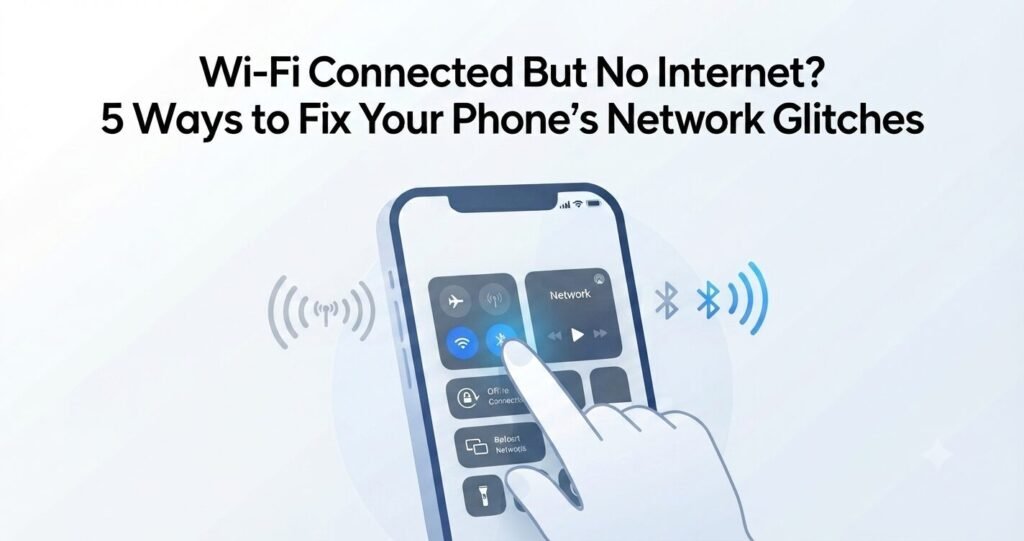
This is the absolute fastest and least annoying way to clear a minor network loop.
- Why it works: Cutting all cellular, Wi-Fi, and Bluetooth signals at once forces your phone to drop the corrupted connection and request a brand-new handshake from the router. It’s my go-to cheat code whenever Wi-Fi acts up in public spaces.
- How to do it: Pull down your control center, turn on Airplane Mode, wait about 10 seconds, and turn it off.
2. Forget the Network and Clear Out Corrupted Cache
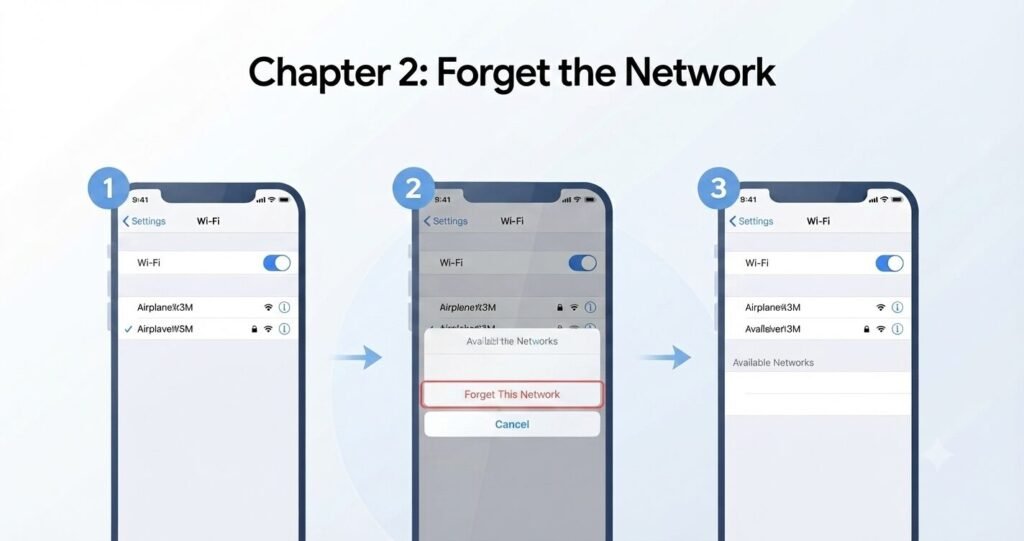
If your phone suddenly refuses to connect or move data even though you haven’t changed your password, it’s usually holding onto a corrupted IP address or old configuration profile.
- Why it works: Once it’s wiped clean, put your password back in and log in fresh. It clears out bad cache data instantly and establishes a clean routing path.
- How to do it: Go to your Wi-Fi settings, select the problematic network, and tap “Forget This Network.”
3. Disable “Private Wi-Fi Address” (Fixing MAC Randomization Conflicts)
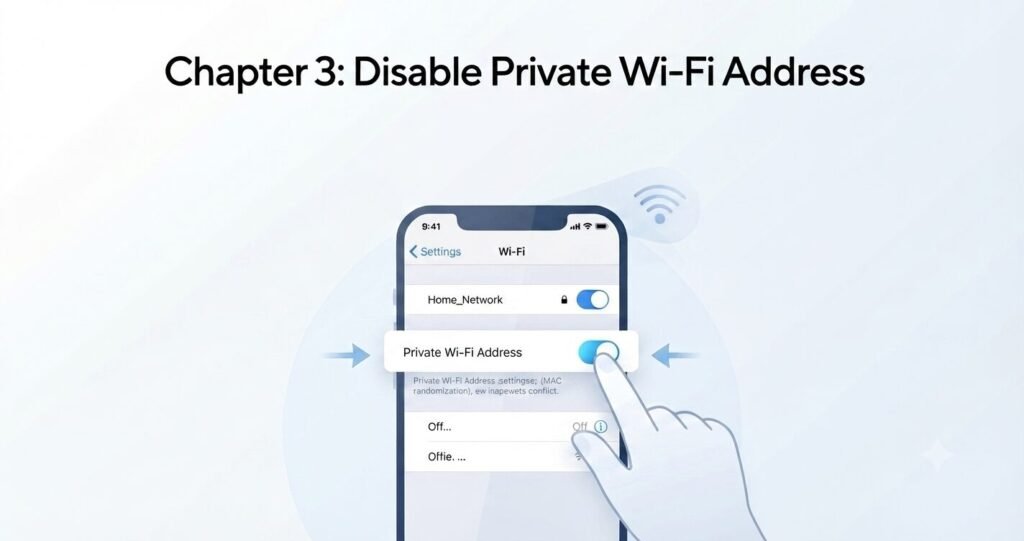
Modern phones feature built-in privacy settings like randomized MAC addresses to protect you on public networks. However, these security features can occasionally confuse home or private routers, causing your device to get blocked from pulling internet traffic.
- Why it works: Using a fixed address stops the router from treating your device like a stranger, stabilizing your connection right away.
- How to do it: Head into your Wi-Fi details and toggle off “Private Wi-Fi Address” or “MAC Randomization” for your trusted network.
4. Reset Your Network Settings Entirely (The Ultimate Backup)
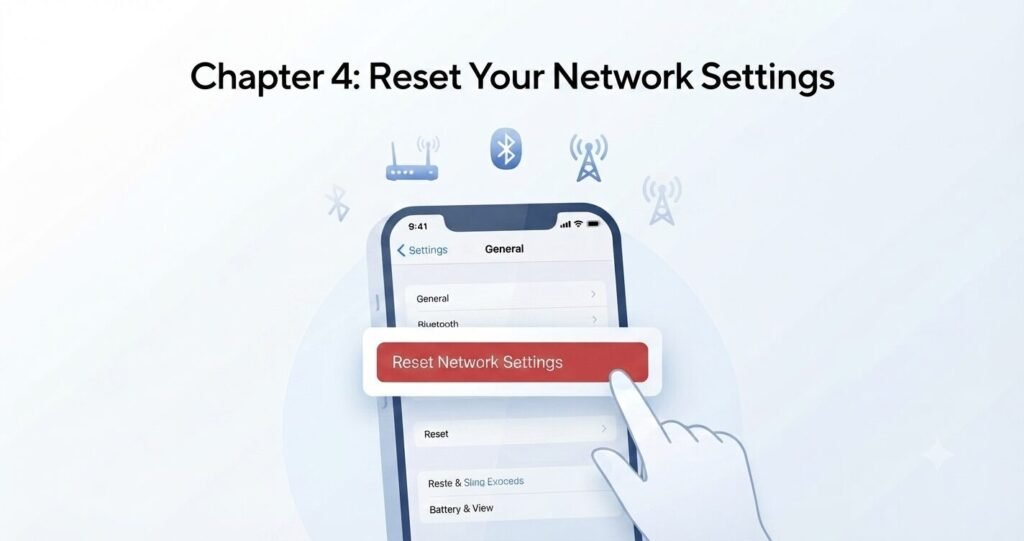
If you’ve tried everything and the Wi-Fi still refuses to cooperate, your entire network stack might be deeply corrupted. It requires a bit of setup afterward, but it’s a foolproof fix.
Note: This will wipe out your saved Wi-Fi passwords and Bluetooth pairings, but your personal files, photos, and apps remain 100% untouched and safe.
How to do it: Go to system settings, look for transfer or reset options, and select “Reset Network Settings.”
5. Switch to a Reliable Public DNS Server
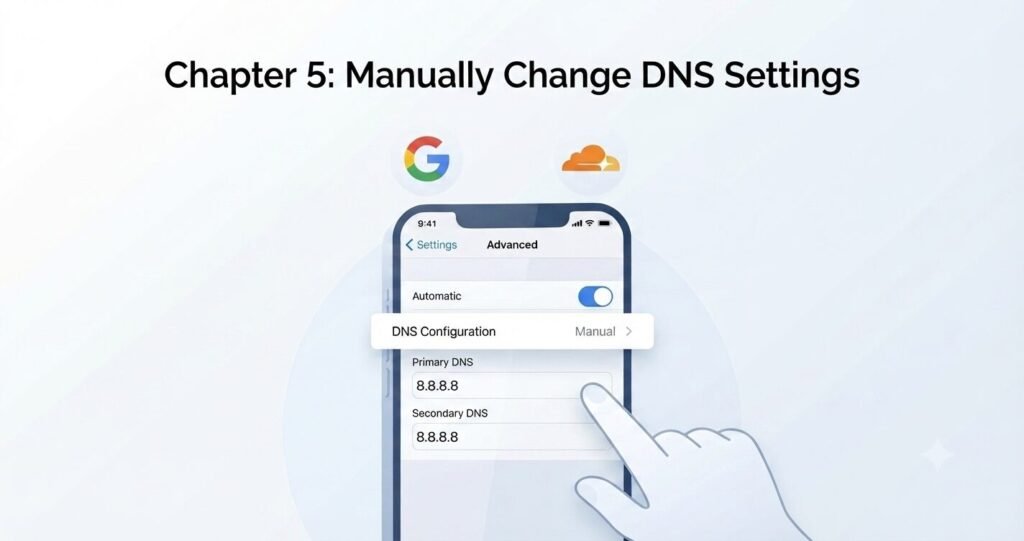
Sometimes your phone is connected to the Wi-Fi, but a broken Domain Name System (DNS) server prevents it from translating website names.
- Recommendation: Switching to Google (
8.8.8.8/8.8.4.4) or Cloudflare (1.1.1.1) can instantly bypass local provider outages and get your pages loading in seconds.
- How to do it: Manually change your DNS settings to a trusted public option.
FAQ
- Q: Why does my phone say connected to Wi-Fi with no internet while other devices work fine?
- A: That usually means your router’s IP address allocation table is full or your phone has a corrupted local cache. Toggling Airplane Mode or forgetting the network almost always resolves it on your end.
- Q: Does resetting network settings delete my personal photos or apps?
- A: Absolutely not! It only resets Wi-Fi passwords, Bluetooth connections, and cellular settings. Your personal files and apps remain completely untouched.
The Takeaway
A full Wi-Fi signal with zero internet access is enough to drive anyone crazy, but the issue is rarely as complicated as it seems. Instead of tearing your hair out or yelling at a router, give your phone’s internal network stack a quick reset using these methods.
Drop a comment below if you have your own secret trick for fixing stubborn phone network glitches!
💡 Read Next: Is your phone also running sluggishly while browsing? Learn how to protect your device from further accidents with our guide on [Phone Water Damage: 5 Dangerous Mistakes You Make (And What to Do Instead)].