My phone ran noticeably hot in my pocket during a trip last month, and by early afternoon the battery was already down further than a normal day would explain — the only thing that had changed recently was switching from a physical SIM to eSIM. A quick search turned up plenty of people describing the exact same thing, but most explanations stopped at “it shouldn’t do that” without actually walking through why eSIM battery drain happens or what to check first. So this is the troubleshooting version of that answer — the actual causes, in the order worth checking, and what fixes each one.
Why eSIM Battery Drain Happens in the First Place
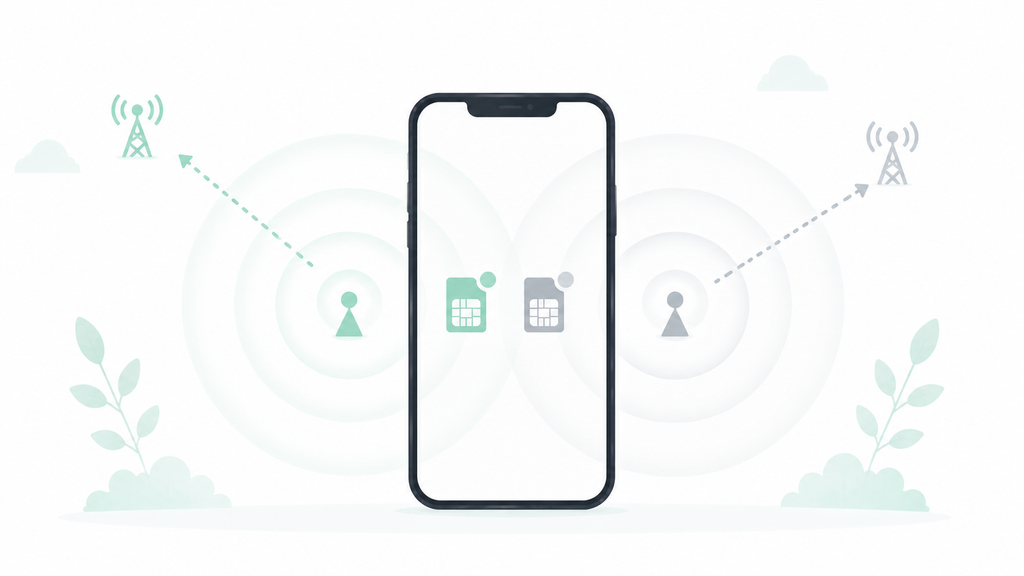
An eSIM isn’t a different kind of cellular connection — it’s the same network your phone would use with a physical card, just stored digitally instead of on a removable chip. The battery impact isn’t from the eSIM technology itself; it comes from a handful of specific behaviors that show up more often with eSIM setups than with a single physical card.
Dual-line management overhead. Most eSIM setups exist specifically to run two lines at once — a personal line and a work line, or a home carrier plus a travel eSIM. Managing two active cellular profiles, even if only one is actively being used for calls or data, means the radio hardware is doing more background bookkeeping than it would with a single physical SIM.
Carrier profile re-negotiation. Every time a phone switches which line is “primary” for data, or moves between Wi-Fi calling and cellular, the eSIM profile has to re-establish its connection with the carrier’s network. This happens automatically and often invisibly, but each re-negotiation briefly spikes power draw.
Weak signal search magnified by profile switching. In an area with marginal signal, any phone burns extra battery hunting for a stronger connection. With an eSIM managing two profiles, that search can happen on both lines independently, effectively doubling the background signal-hunting work in a weak-coverage area.
Background carrier bundle updates. Carriers periodically push small profile and network configuration updates to the eSIM over the air, similar to a software update but specific to network settings. These downloads are usually small, but they run without any visible notification, and a phone with poor signal at the moment of the update will retry it more aggressively.
The Diagnostic Checklist

Before assuming eSIM battery drain is unavoidable, work through these in order — each one narrows down which of the causes above is actually responsible.
- Check whether both lines are set to search for a signal, or just one. In cellular settings, look at each line’s individual signal strength. If one line consistently shows weaker bars than the other in the same location, that line’s background signal search is likely the main drain.
- Compare battery drain with the secondary line temporarily turned off. Disable the second eSIM line for a few hours during normal use and check the battery percentage against a typical day. A noticeable improvement points to dual-line overhead as the cause rather than a single misbehaving profile.
- Look at which line is set as the default for data. If data defaults to a line with weaker coverage in your usual locations, switch the default to whichever line reliably shows stronger signal, and see if drain improves.
- Check for a pending carrier settings update. Under the carrier or cellular settings menu, look for an option to check for a carrier update manually rather than waiting for it to happen automatically in the background.
- Note whether the drain is constant or tied to specific locations. If the battery only drops fast in one particular building or area, weak-signal search is almost certainly the cause rather than a persistent software issue.
What to Actually Do About It
Once the diagnostic steps point to a likely cause, here’s what actually addresses each one:
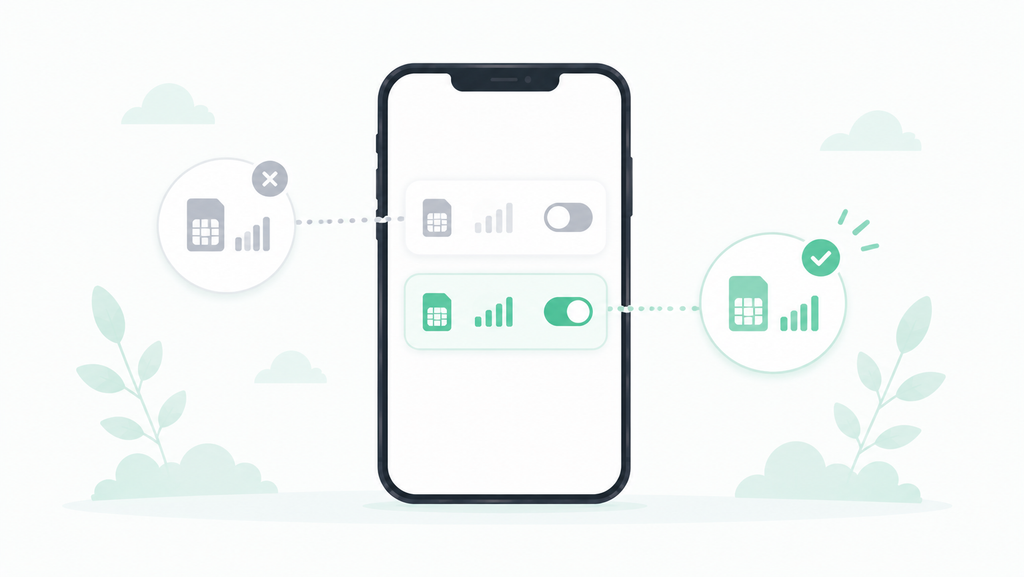
If dual-line signal search is the cause: turn off the line you’re not actively using when you don’t need it live — most phones let you toggle a line on or off without removing the eSIM profile entirely, which avoids the overhead without losing the setup.
If weak coverage in specific locations is the cause: switch to Wi-Fi calling when available in that location, which lets the phone rely on Wi-Fi instead of continuously searching for a weak cellular signal.
If a stuck carrier profile update is the cause: manually trigger a check for carrier settings updates while on a strong Wi-Fi connection, rather than letting the phone keep retrying over a weak cellular signal.
If the wrong line is set as default for data: switch the default data line to whichever one shows consistently stronger signal in the places you spend the most time.
If none of the above changes anything: resetting network settings clears out any corrupted profile configuration without deleting the eSIM itself, and is worth trying before assuming the eSIM needs to be removed and re-added from scratch.
When It’s Probably Not the eSIM at All
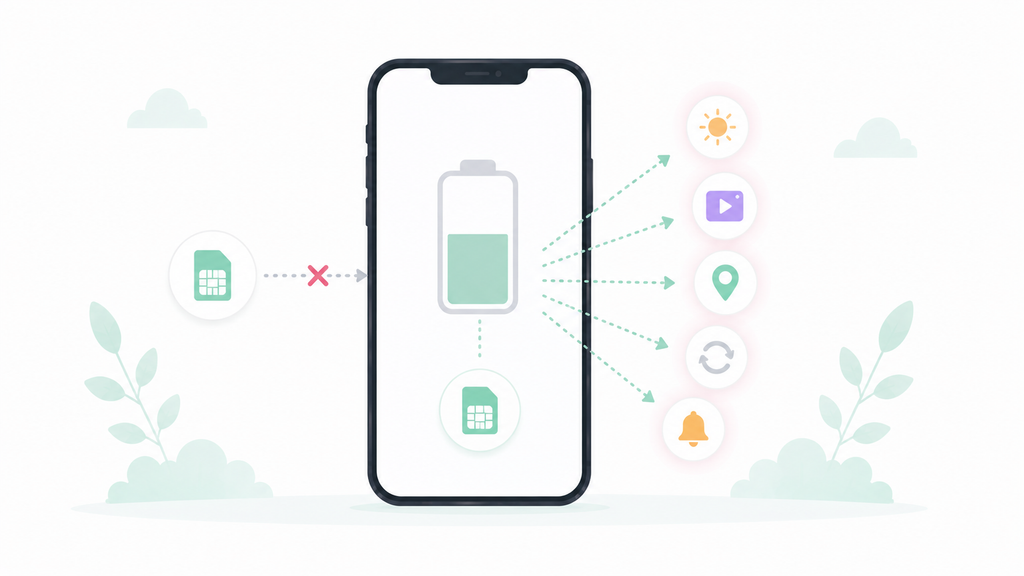
Before pinning everything on eSIM battery drain specifically, it’s worth ruling out causes that have nothing to do with the SIM setup: background app refresh, location services set to “Always” on apps that don’t need it, or a phone that was already due for a battery health check regardless of SIM type. If disabling the secondary eSIM line makes no measurable difference at all, the drain is probably coming from somewhere else entirely, and it’s worth checking those more common causes before troubleshooting the eSIM setup any further.
Frequently Asked Questions
Does using eSIM instead of a physical SIM drain more battery on its own? Not inherently — the connection itself is the same cellular network either way. The extra drain typically comes from managing two active lines at once, which is common in eSIM setups but not caused by the eSIM technology itself.
Will turning off my second eSIM line completely disable it? No, in most phones you can toggle a line off temporarily without removing the eSIM profile, so it’s ready to turn back on without going through setup again.
Does eSIM battery drain get worse while traveling? Often, yes, especially if a travel eSIM is added as a second line and the home line keeps searching for a signal it can’t strongly reach abroad. Turning off the home line while traveling usually helps.
Is resetting network settings safe to try? Yes — it clears saved Wi-Fi passwords and network configurations but doesn’t delete the eSIM profile itself, so it’s a low-risk step to try before more drastic troubleshooting.
The Real Difference
Out of all the possible causes, dual-line signal management in areas with inconsistent coverage accounted for the most common and most fixable source of eSIM battery drain — and it’s also the one most people never think to check, since it looks identical to normal background battery use until you compare it side by side with the second line switched off.
📍 Read Next: If eSIM setup itself is still ahead of you rather than already causing issues, the transition has its own separate list of things worth knowing first — I Switched to eSIM. Here’s Everything I Didn’t Expect. covers that side of it.