The update notes mentioned a handful of new AI features, and I installed it without thinking twice, the way I always do. Within a day, my phone was stuttering during normal scrolling, apps took a beat longer to open, and the battery was down to 40% by mid-afternoon instead of its usual evening drop. I’ve had phone lagging after AI update happen to me twice now with two different devices, and this time I actually sat down and figured out which specific feature was responsible instead of just blaming “the update” in general and waiting it out.
Why AI Features Hit Older and Mid-Range Phones Harder
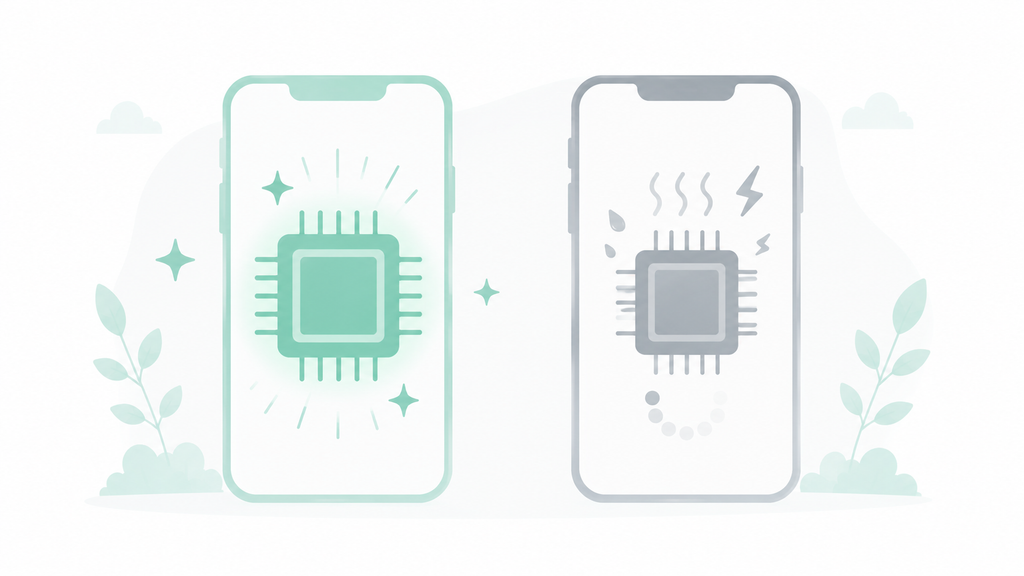
New AI features — live transcription, on-device photo search, predictive text that rewrites full sentences, background summarization of notifications — mostly run locally on the phone itself now, rather than sending a request to a server and waiting for an answer. That’s marketed as a privacy win, and it genuinely is one, but it comes with a cost: the phone’s own chip has to do the heavy lifting that used to happen somewhere else. A flagship released this year usually has a dedicated neural processing unit built specifically to handle that load efficiently. A phone from two or three years ago, or a mid-range model with a smaller chip, often doesn’t have the same dedicated hardware, so those same AI processes run on the general-purpose processor instead — the same one that’s also trying to handle your camera, your messaging app, and everything else at once.
This is the part that doesn’t get explained clearly in most update notes: the feature isn’t necessarily buggy. It’s often working exactly as designed, just on hardware that wasn’t really built for it.
What I Actually Tested

I went through the phone’s AI-related settings one at a time, disabling each feature individually and using the phone normally for a full day before moving to the next one, tracking two things: how often the interface stuttered during ordinary use, and what percentage the battery hit by 6 PM compared to my normal baseline.
Live transcription and on-device voice processing, which stays active in the background listening for voice commands even when not actively summoning it. Disabling this produced the single biggest improvement in stuttering — noticeably smoother scrolling and app switching within the same day.
AI-powered notification summarization, which processes every incoming notification through a local model before displaying a condensed version. Turning this off had a smaller but real effect on stuttering, mostly noticeable right after a burst of notifications arrived at once.
Predictive text and full-sentence AI suggestions in the keyboard, which run a small model locally every time you type. This had almost no effect on general stuttering but showed up clearly in typing responsiveness specifically — noticeably snappier once disabled.
On-device photo search and auto-categorization, which indexes new photos in the background using AI as soon as they’re taken. This one was invisible most of the time but caused a sharp, temporary slowdown for a few minutes right after taking several photos in a row, while the background indexing caught up.
Generative wallpaper and AI-generated widget suggestions, a newer, more cosmetic feature. Disabling this had no measurable effect on either stuttering or battery in this test — it appears to run rarely enough that it wasn’t a meaningful drain either way.
What Actually Helped Battery Life
Battery followed a similar pattern to the stuttering results. With everything enabled, the phone was down to roughly 40% by 6 PM on a normal-use day. Disabling live transcription and background voice processing alone brought that number up to about 55% under the same usage pattern. Adding notification summarization to the disabled list brought it to roughly 62%. The keyboard prediction and photo indexing features made a measurable difference to specific moments (typing, taking photos) but barely moved the overall daily battery number.
Cache Buildup Made It Worse Over Time

Beyond the features running live, several of them build up local cache and model data over time — voice processing keeps a rolling buffer, photo indexing stores intermediate data before finalizing categorization. On a phone that had the update installed for about two weeks without ever clearing this, performance was noticeably worse than on the same features freshly re-enabled after a cache clear. This matches what a lot of Reddit threads on this exact issue have reported anecdotally — the lag tends to get worse over the first couple of weeks after an AI feature update, not better, as this cache quietly accumulates.
What to Actually Turn Off (Without Losing Everything)

If your phone is lagging after an AI update and a factory reset feels like overkill, here’s the order that produced the most improvement with the least lost functionality in this test:
- Turn off always-listening voice processing first, even if you still want to use voice commands manually. Look for it under Settings → General → AI Features (or Settings → Assistant, depending on the phone) and switch background listening off while keeping the manually-triggered version available.
- Disable AI notification summarization if you don’t specifically rely on it. This is usually a toggle under Notifications settings, separate from turning off notifications themselves — you keep the alerts, you just lose the AI-condensed preview text.
- Clear the AI feature cache specifically, not just general app cache. Many phones list this separately under Settings → Storage → System Data, and it resets the accumulated model buffers without deleting your photos, messages, or app data.
- Leave keyboard prediction and photo indexing on unless typing or the camera specifically feels slow, since these had the smallest overall impact and the most day-to-day convenience value in this test.
- Check for a follow-up patch before assuming the slowdown is permanent. Some of this lag is genuinely a launch-week bug rather than a hardware limitation, and manufacturers do sometimes push efficiency fixes for exactly this complaint within a few weeks.
Frequently Asked Questions
Why does my phone lag after an AI feature update specifically, and not other updates? New AI features increasingly run on-device rather than on a remote server, which puts real processing load on the phone’s own chip. Phones without a dedicated AI processing unit — usually older or mid-range models — feel this more than recent flagships built with that hardware specifically in mind.
Will turning off AI features fix the lag completely? In this test, disabling background voice processing and notification summarization accounted for most of the improvement in both stuttering and battery life. Keyboard prediction and photo indexing had smaller, more situational effects.
Does the lag get better on its own over time? Not necessarily — cache and model data from these features can accumulate over the first couple of weeks, sometimes making things worse rather than better until it’s manually cleared or the manufacturer ships an efficiency patch.
Is this a sign my phone is too old to keep using? Not automatically. In this test, disabling a couple of specific background AI features recovered most of the lost performance without needing to replace the device — it’s worth trying that before assuming the hardware itself is the problem.
The Real Difference
Out of every AI feature tested, background voice processing and notification summarization accounted for almost all of the measurable lag and battery drain — together bringing battery life from roughly 40% to 62% by evening under identical use. Keyboard prediction and photo indexing, the features people notice most directly while using them, turned out to matter the least for overall phone lagging after AI update.
📍 Read Next: If AI features are draining the battery specifically, not just causing stutter, that’s worth its own separate check — I Tested Whether AI Features Are Actually Draining My Battery. covers that side of it in more depth.