Mobile data is vanishing fast while you stare at your screen, and a sudden text pops up from your carrier. You have used 90% of your monthly allowance, and the billing cycle still has two weeks left to go. Cue the mini panic attack.
Most people assume it is their heavy video streaming habits or endless doom-scrolling on social media. But often, your phone is secretly munching on data behind your back through tiny, forgotten background tasks. It is like leaving the water running in the guest bathroom while you are out for the day.
Let us hunt down those invisible data vampires and lock them out for good.
1. Ditch Background App Refresh on Cellular
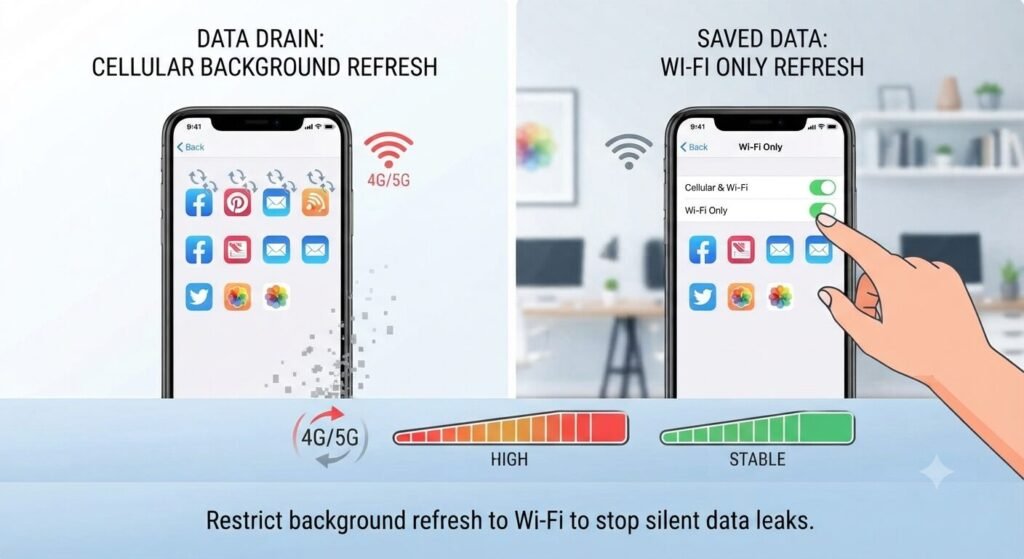
Every single app on your device thinks it is the star of the show. They constantly ping servers to fetch new posts, ads, and updates even when you are not actively opening them.
Dive into your settings and restrict background refresh strictly to Wi-Fi, or turn it off for apps that do not need live updates every second. Your phone stops chattering in an empty room, and your data bucket finally gets some breathing room.
2. Curb Automatic App Updates Over Mobile Data
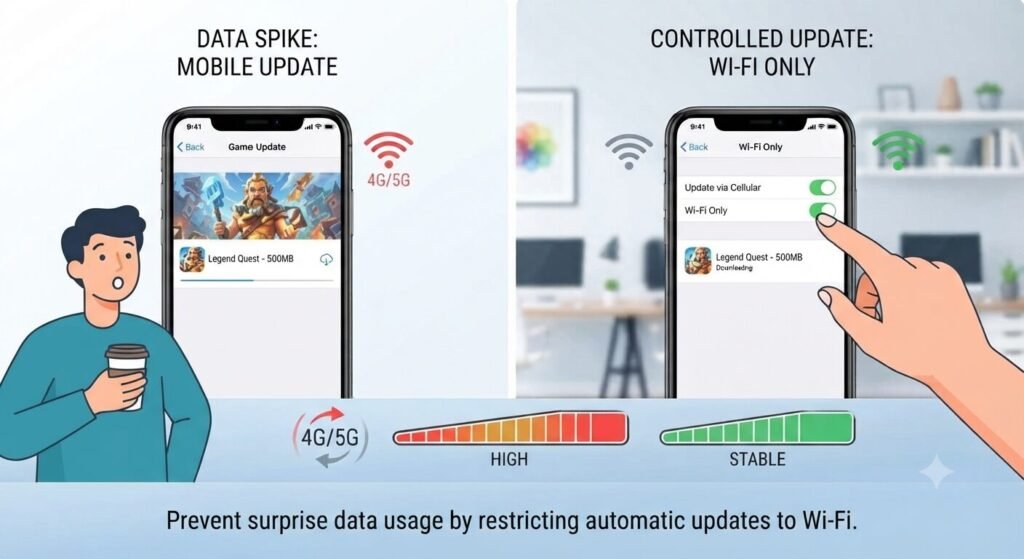
You wake up, grab a cup of coffee, and your phone quietly downloads a massive 500-megabyte game patch using your cellular data instead of waiting for home Wi-Fi.
Flip the switch in your app store settings to update applications only when connected to a secure wireless network. It prevents sudden data spikes that catch you off guard mid-month.
3. Tame High-Quality Media Auto-Downloads
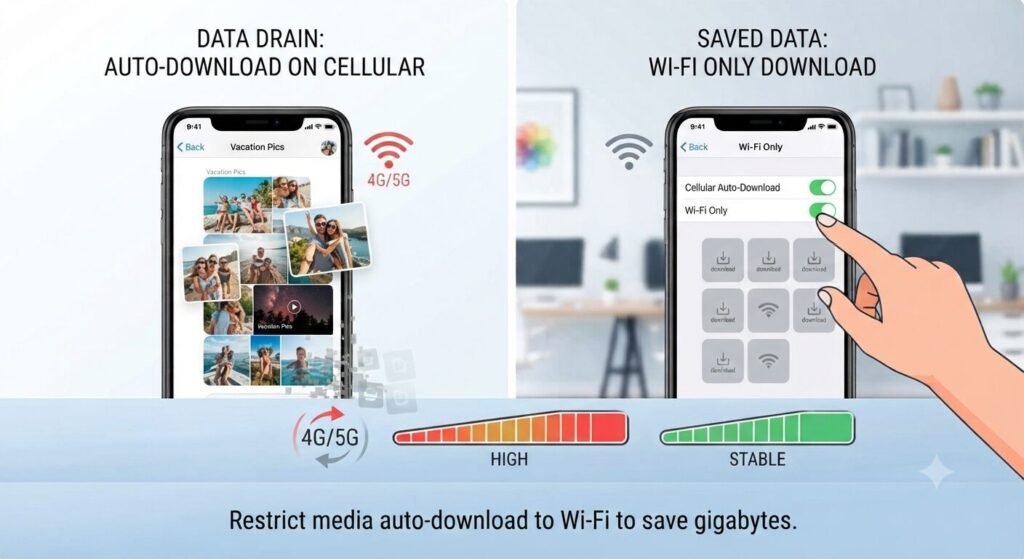
Messaging apps and social platforms love loading crystal-clear videos and high-res photos the second they land in your feed. If you belong to multiple group chats sharing dozens of vacation clips daily, your data vanishes in a heartbeat.
Head into your messaging settings and change media auto-download to Wi-Fi only, or set photo uploads to standard quality when using mobile data. You still see everything you want, minus the data tax.
4. Watch Out for Cloud Syncing on LTE
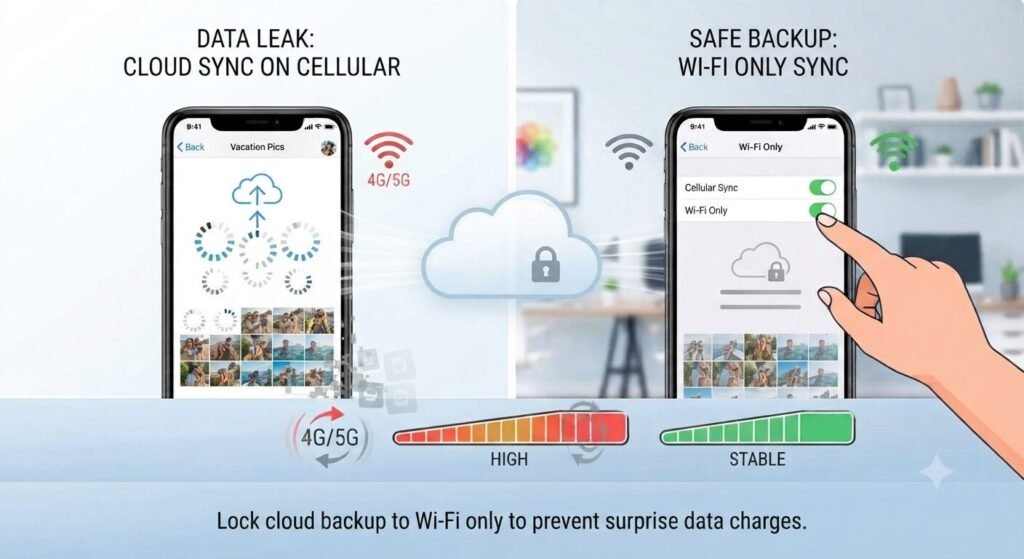
Backing up your entire photo library or 4K video collection to cloud storage is smart, but doing it over cellular data is a quiet disaster. One afternoon at the park can upload gigabytes of media without you noticing a single notification.
Lock your cloud backup settings to manual or Wi-Fi-only sync. Let the heavy lifting wait until your phone is safely plugged in at home on your own wireless network.
5. Identify and Limit Rogue Data Hogs
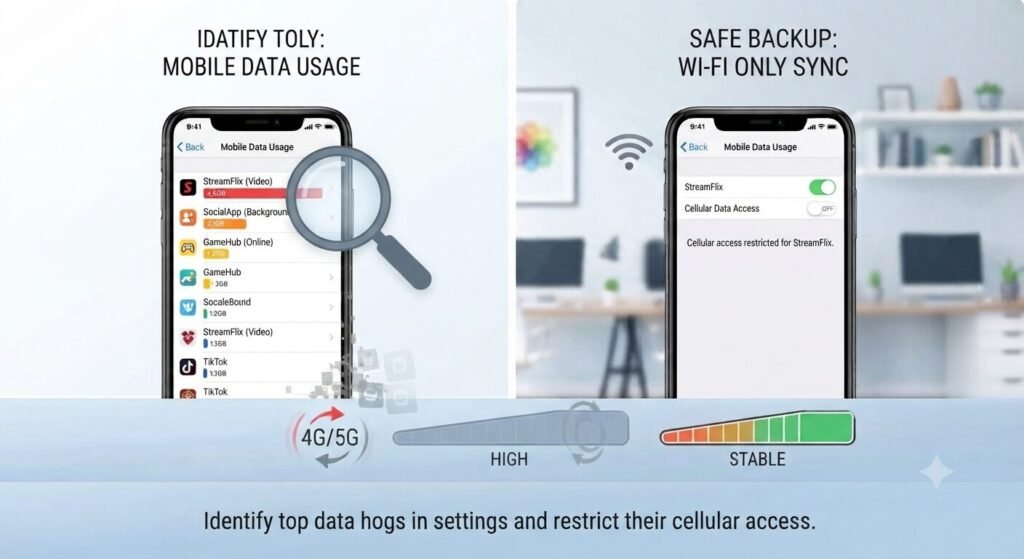
Some apps just consume way more than their fair share because of poor optimization or hidden analytics tracking.
Check your built-in mobile data usage breakdown in your phone settings. Sort through the list from highest to lowest consumption, and restrict or uninstall anything that looks suspicious or that you haven’t opened since last year.
FAQ: Quick Questions People Ask
- Does turning off background data affect push notifications? Usually, basic notifications like incoming text messages or phone calls come through separate channels, but some chat apps might deliver messages slightly slower until you open them.
- How much data can I actually save with these tweaks? For most average users, cutting off rogue background sync and automatic updates can easily save 2 to 4 gigabytes every single month.
The Takeaway
Data plans are expensive, and carriers are not handing out extra gigabytes for free. By tightening a few loose settings right now, you keep your monthly allowance intact and your wallet happy.
💡 Read Next: Want to optimize your phone further? Check out our guide on [How to Stop Your Phone from Overheating (And Why It’s Dangerous)] to keep your device cool and running smoothly.