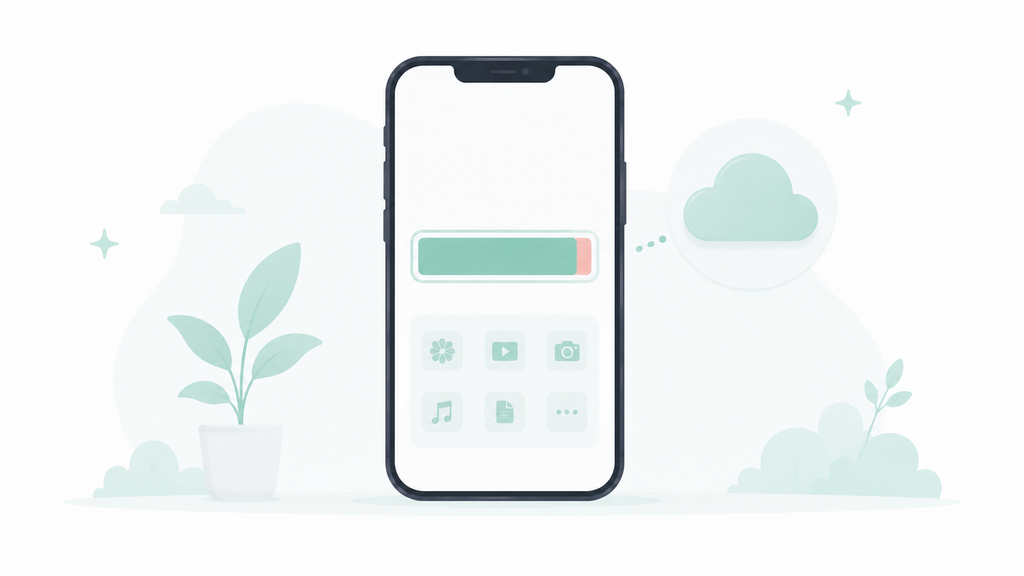
My phone hit the “Storage Almost Full” warning for the third time in two months, and each time I’d just delete a random batch of photos and move on without knowing if that was even the right thing to delete. This time I decided to actually optimize iPhone storage properly — checking Settings → General → iPhone Storage before and after every single method, one at a time, to see which ones actually mattered and which ones were a waste of ten minutes.
Starting Point
Before touching anything, I checked the storage breakdown: photos and videos took up the largest share, followed by apps, then “other” (system data, caches, and documents), then messages. I wrote down the exact number for each category so every change afterward could be measured against a real baseline instead of a vague “feels a bit better.”
What I Tested, One Method at a Time

Turning on “Optimize iPhone Storage” for photos (which keeps smaller versions on-device and full-resolution originals in iCloud). This alone freed up the largest single chunk of space of anything tested — noticeably more than every other method combined, since photos and videos were the biggest category to begin with.
Offloading unused apps (which removes the app but keeps its documents and data, so reinstalling restores everything). This freed up a meaningful amount, concentrated almost entirely in a handful of large apps I hadn’t opened in months, rather than being spread evenly across everything installed.
Clearing Safari’s website data and cache. This produced a small but real amount of freed space — noticeable, but far smaller than either of the two methods above.
Deleting old voice memos, downloaded podcasts, and message attachments that had piled up in Messages over a couple of years. This surprised me — the accumulated attachments turned out to account for more space than expected, more than Safari’s cache, less than offloading apps.
Restarting the phone, just to see if a restart alone affected the “Other” storage category the way some advice online claims. It didn’t move the number at all in this test.
What Actually Moved the Needle

Ranked by actual gigabytes freed, from biggest to smallest: photo optimization first by a wide margin, offloading a handful of large unused apps second, clearing accumulated message attachments third, Safari cache fourth, and restarting the phone last, with no measurable effect at all.
The Category That’s Hardest to Fix
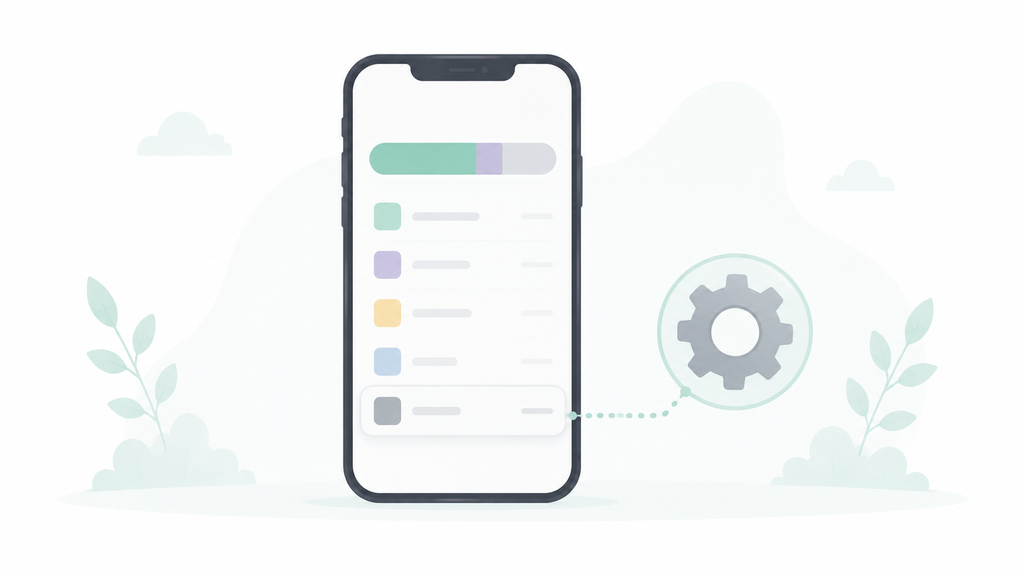
The “Other” storage category — system data, caches from apps that don’t offer a manual clear option, and files Apple doesn’t break down individually — barely moved no matter what I tried short of a full reset. This is the part of iPhone storage most guides gloss over, mostly because there isn’t a clean, one-tap fix for it the way there is for photos or apps.
What to Actually Do to Optimize iPhone Storage
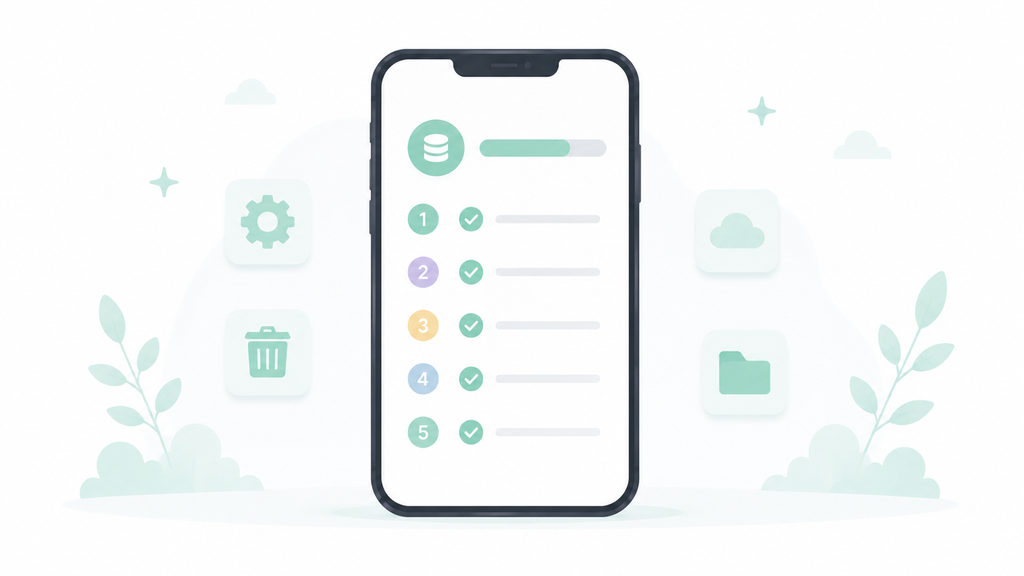
If storage keeps filling up and a full reset isn’t something you want to do, here’s the order that actually worked, based on gigabytes freed:
- Turn on “Optimize iPhone Storage” for photos first. Settings → Photos → Optimize iPhone Storage. This produced the single biggest result in this test and takes about ten seconds to turn on.
- Offload large unused apps before deleting them outright. Settings → General → iPhone Storage → tap an app → Offload App. This keeps your data intact in case you reinstall later, while still freeing the space the app itself was taking up.
- Go through Messages for old attachments specifically, not just conversations — Settings → General → iPhone Storage → Messages shows exactly how much space attachments are using, separate from the conversations themselves.
- Clear Safari’s cache as a smaller, occasional cleanup, not as a primary strategy — it helps, but it’s the smallest gain of everything tested here.
- Don’t expect a restart to fix a storage problem. It’s a reasonable troubleshooting step for other issues, but in this test it had zero measurable effect on freed-up space.
Frequently Asked Questions
What’s the fastest way to optimize iPhone storage? Turning on “Optimize iPhone Storage” for photos under Settings → Photos produced the largest single improvement in this test, and it takes only a few seconds to enable.
Does offloading apps delete my data? No — offloading removes the app itself but keeps its documents and data on the phone, so reinstalling the app restores everything exactly as it was.
Why does the “Other” storage category keep growing? It covers system data and app caches that don’t have a manual clear option, which is why it’s the hardest category to reduce without a full device reset.
Does restarting my iPhone free up storage? Not in any measurable way, based on this test. It’s useful for other performance issues, but it didn’t change the storage numbers at all here.
The Real Difference
Out of every method tested to optimize iPhone storage, photo optimization alone accounted for more freed space than every other method combined. Offloading a few large unused apps came in a distant second, and the smaller cleanup habits — Safari cache, message attachments — added up to something worth doing, just nowhere close to the two biggest levers.
📍 Read Next: If storage keeps filling up specifically from photos even after optimizing, backing them up properly is the next thing worth checking — I Restored My iPhone From Three Different Backups to See Which One Actually Works. covers that side of it.