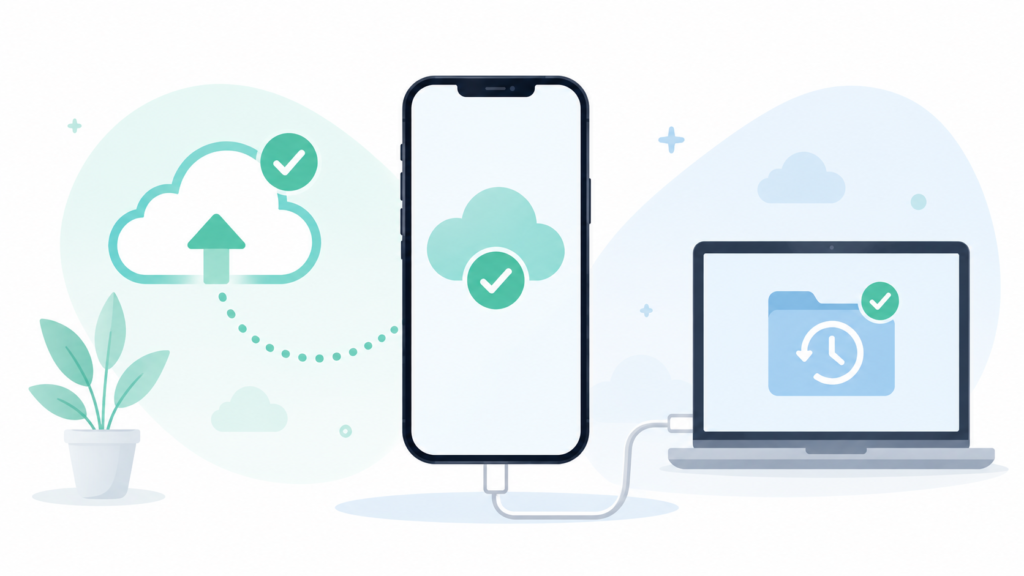
A friend’s phone got stolen last month, and when she went to restore it onto a replacement, her “backup” turned out to be eighteen months old — she’d assumed iCloud was quietly handling everything, and it wasn’t. That story bothered me enough that I put together my own iPhone backup guide by spending a month actually testing every backup method available, on purpose breaking things and restoring from each one, to find out which methods actually protect you and which just feel like they do.
Why I Didn’t Trust “It’s Probably Backing Up”
Before this test, my own setup was the same vague confidence my friend had — iCloud Backup toggled on, assumed it was current, never actually verified. That assumption is common and it’s also the exact gap that caused her problem. An iPhone backup guide that just says “turn on iCloud Backup” isn’t wrong, but it skips the part that actually matters: confirming it ran, confirming what it covers, and knowing what happens when you actually need to use it.
The Three Methods I Tested
iCloud Backup (automatic, wireless). This runs automatically when the phone is locked, connected to Wi-Fi, and charging. I let it run untouched for two weeks, then deliberately reset a spare iPhone and restored from it.
Finder/iTunes backup on a computer (manual, wired). I connected via cable and ran a manual backup once a week for the month, then restored from the most recent one.
Third-party cloud backup app. I tested one of the photo-specific backup apps that many people add alongside iCloud, restoring a folder of photos from it after deleting them from the phone.
What iCloud Backup Actually Covers — and What It Doesn’t
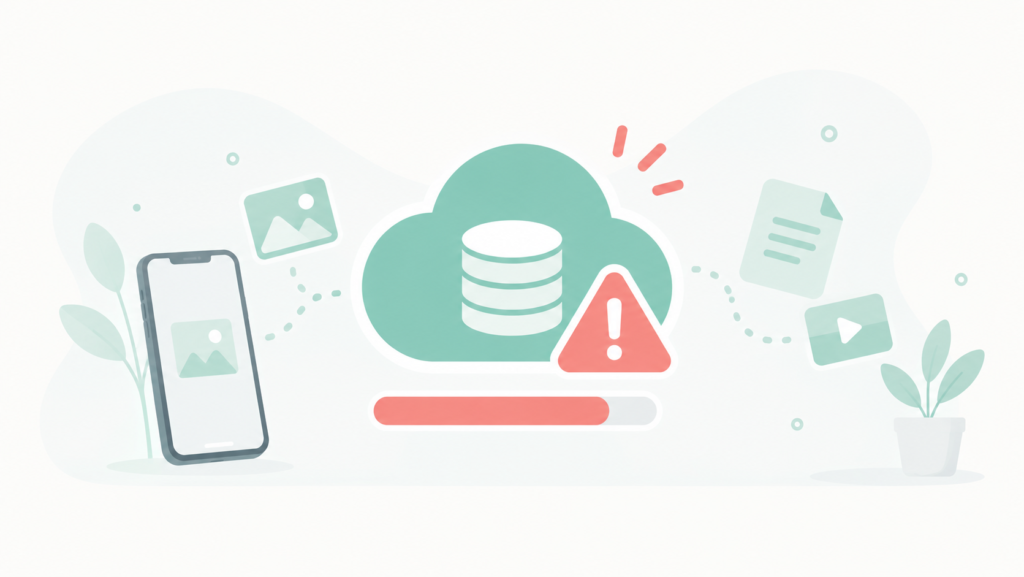
The restore from iCloud brought back contacts, messages, photos, app data, and settings cleanly, which matched expectations. What surprised me was checking the actual backup completion date in Settings → [Name] → iCloud → Manage Storage → Backups — mine had silently stopped completing three days before I checked, because storage had filled up and iCloud simply stopped without any prominent alert. The phone had been sitting there for three days assuming it was protected when it wasn’t.
Apps that store data outside the standard backup system are the other gap. A couple of my apps use their own separate cloud sync rather than relying on the iPhone backup at all, and one app’s local-only data (a note-taking app I use for quick drafts) wasn’t included in the iCloud restore at all — it simply wasn’t designed to be.
What the Computer Backup Got Right
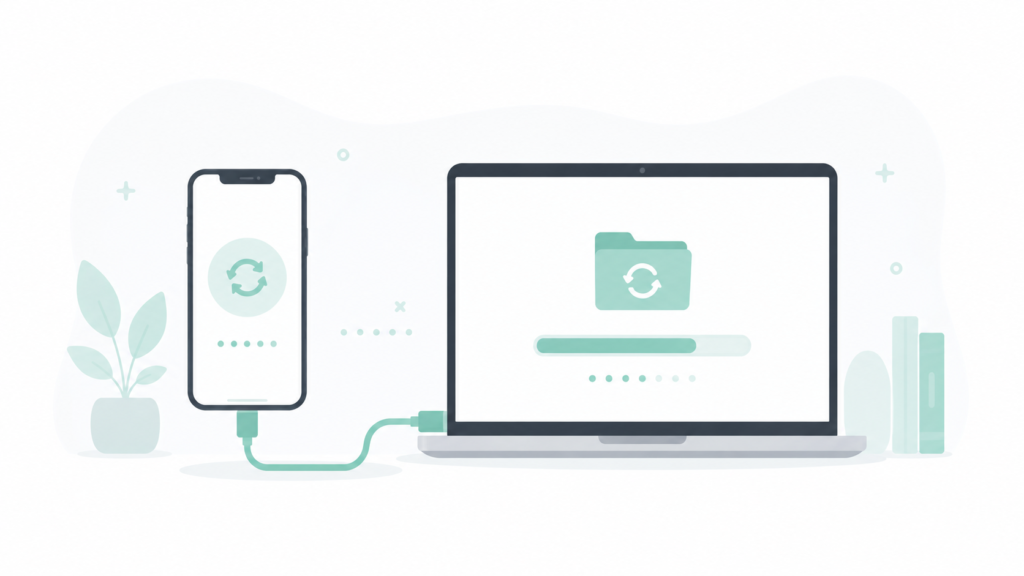
The Finder backup restored everything iCloud did, plus it caught the local-only app data that iCloud missed, since a full computer backup captures more of the phone’s file system than the wireless version does. The tradeoff is obvious — it requires physically connecting the phone and remembering to do it, which is exactly why most people don’t.
What the Third-Party App Actually Added
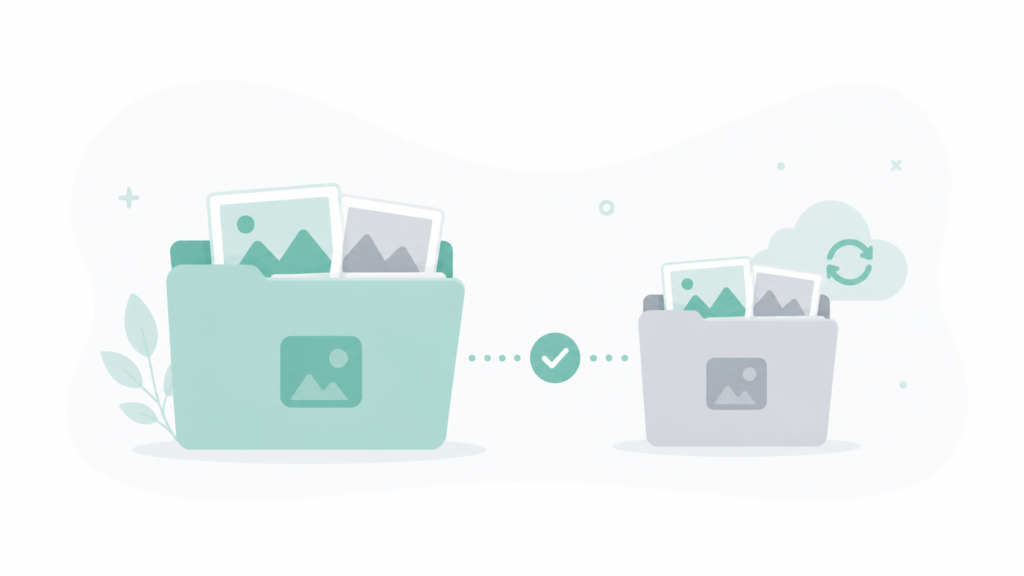
The dedicated photo backup app restored photos reliably and, unlike iCloud, kept a separate version even after I’d deleted the photos from both the phone and iCloud itself — which turned out to be the one scenario the other two methods couldn’t cover at all. If a photo gets deleted everywhere by mistake, iCloud Backup and Finder backup won’t save you from that; a genuinely separate backup will.
What to Actually Set Up, In Order
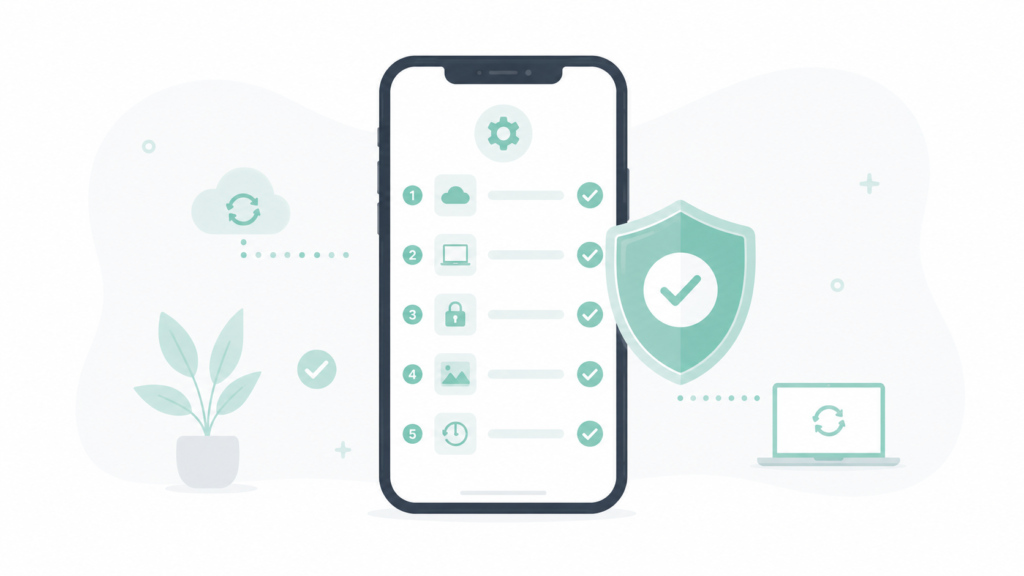
If you’re looking for an iPhone backup guide that goes past “just turn on iCloud,” here’s what this month of testing actually pointed to:
- Turn on iCloud Backup, but check the last completed date monthly, not just once. Go to Settings → [Name] → iCloud → Manage Storage → Backups and confirm the date, since a full storage plan can silently stop backups without a clear warning.
- Do a manual Finder/computer backup every few months, especially before a major iOS update. This catches local-only app data that iCloud doesn’t cover and gives you a second copy that isn’t dependent on iCloud storage space.
- Keep a separate backup for photos specifically if they matter most to you. A dedicated photo backup app protects against the one failure mode neither iCloud nor Finder covers — deleting something everywhere by mistake.
- Check iCloud storage space before it fills up, not after. This was the actual root cause behind the silent failure in this test, and it’s the easiest thing on this list to prevent in advance.
- Test a real restore once, on a spare device or before wiping an old phone. Assuming a backup works and confirming it works are two different things, and the second one is the only one that actually protects you.
Frequently Asked Questions
Is iCloud Backup enough on its own? For most people, most of the time, yes — but it can silently stop working if iCloud storage fills up, and it doesn’t cover local-only data from every app. Checking the last completed backup date occasionally closes that gap.
How do I know if my iCloud backup actually worked? Go to Settings → [Name] → iCloud → Manage Storage → Backups and check the date next to your device. If it’s older than expected, storage space or a settings change is usually the cause.
Do I need a computer backup if I already use iCloud? Not strictly required, but a Finder or iTunes backup catches local-only app data that iCloud sometimes misses, and it doesn’t depend on iCloud storage limits at all.
What’s the biggest mistake people make with iPhone backups? Assuming a backup is current without ever checking the date. In this test, an iCloud backup had silently stopped for three days before it was caught, simply from full storage.
The Real Difference
Out of every method tested for this iPhone backup guide, the actual gap wasn’t between iCloud and the alternatives — it was between assuming a backup worked and actually checking that it did. iCloud Backup covered nearly everything correctly until storage quietly stopped it, and that single unchecked assumption is what turned my friend’s stolen phone into a real loss instead of a two-minute restore.
📍 Read Next: If the same phone runs both iOS and Android devices in the household, the backup process looks different on the other side — I Backed Up an Android Phone Every Way Possible Too. covers that comparison.